
Jupyter Data Viz in Minutes with AI IDEs
By Xavier Collantes
Created: 1/3/2026; Updated: 1/3/2026
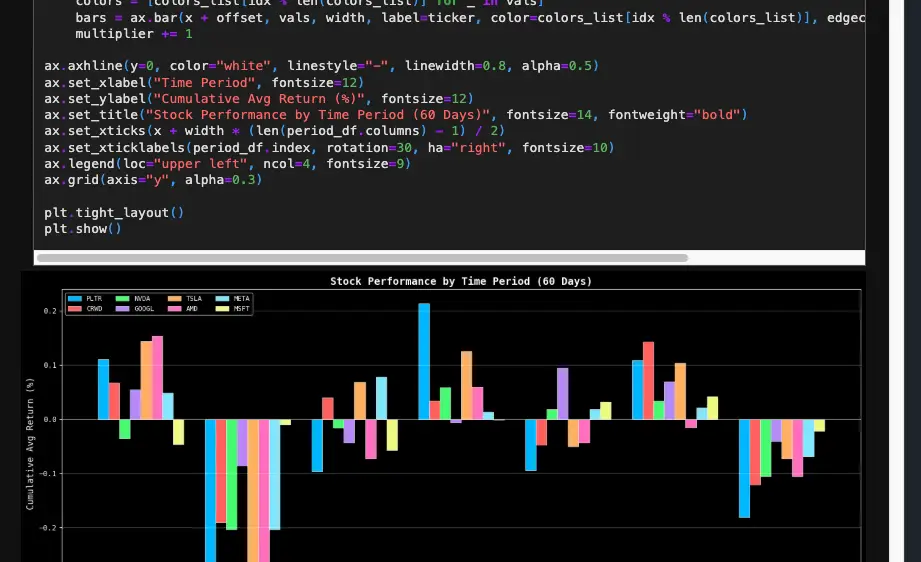
Me: NVDA stock's price action has been retesting at the 200-day moving average
for the last 3 months. I want to see if it can break out. What do you think?
Friend: Can you show me what you mean?
Me: Hold on
1.5 hours later ...
Me: Here is the chart I created.
When I analyze stock price data, I work collaboratively with fellow traders,
friends, and my veteran mentors to receive feedback and insights.
From my experience, sharing ideas and hypotheses is a key part of the process.
And what's the best way to share ideas and hypotheses? With a chart.
But building the visuals takes time. Getting a candlestick chart to look right,
adding overlays, matching scales, and making a clean layout is easy to burn an
hour or two on. When it comes to stock analysis, I want to spend my time on the
analysis and getting my ideas tested, not the visualization.
The Future

Save hours of building the visuals. Let the LLM do it for you.
I chat with my LLM IDE to build the chart and then I can tweak the styling and
layout to my liking by defining the styling, data fields, and timeframes all
from my existing notebook.
This is where LLMs excel! I often use the LLMs to generate code as I specify:
- Timeframes
- Stock symbols
- Chart type
- X-axis
- Y-axis
- Colors
- Legends
My Workflow
My workflow is:
- Define my data sources. In my example, I'm using Yahoo Finance to get the stock data. So if I ask for multiple stocks at multiple timeframes, I can have the LLM build a chart for each stock and timeframe.
- Define my calculations.
- Ask the AI IDE to build the chart for this specific DataFrame schema.
- Iterate quickly on styling and layout (titles, axes, tooltips, subcharts) by having a conversation with the LLM.
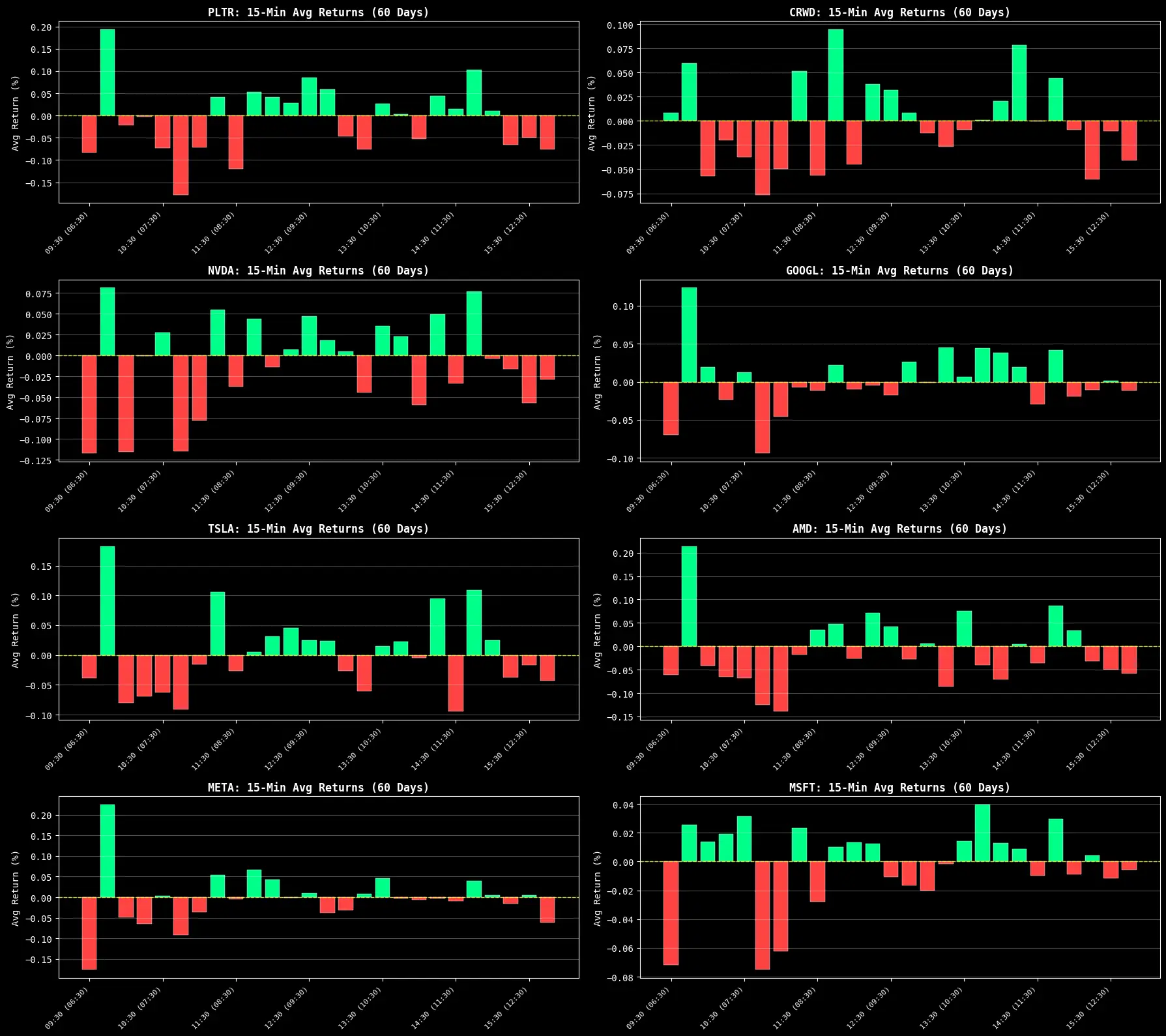
Here are some examples of charts I have prompted the LLM with the goal of
understanding stock trends over a single day:
Text
1Give me a series of charts. For the stocks that I specified in my notebook I
2want to understand the trends over a single day over time. Give the smallest
3timeframe you can with 30 minutes intervals at the largest.
4
snippet hosted withby Xavier
Text
1Matplotlib chart heatmap of stock prices over a single day calculating average
2return by the smallest increment the Yahoo Finance data source in the notebook
3can provide.
4
5Use PST in parenthesis as well as EST.
6
snippet hosted withby Xavier
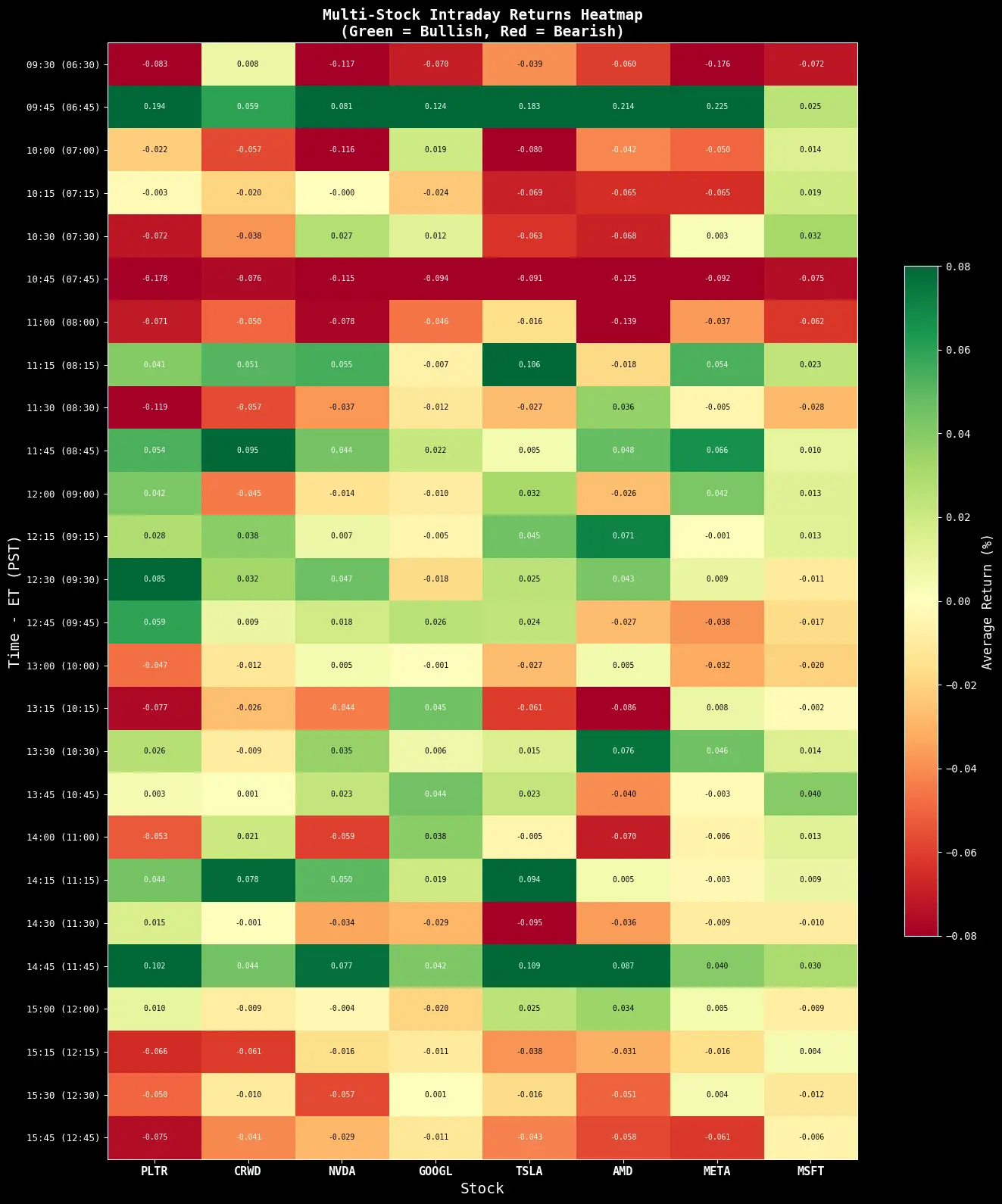
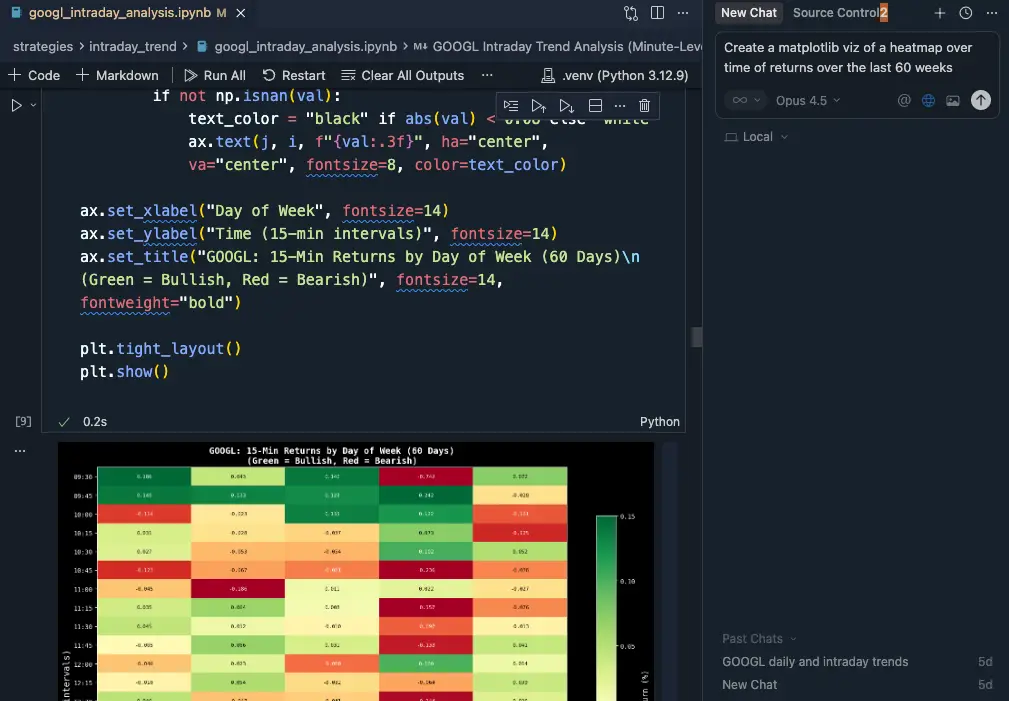
As you can see, the LLM wrote the Python code and all I had to do was run the
cell.
The graphs created answered my questions about trends over a single day for
certain tech stocks. Given the last ~60 days, there are clear trends in the
early hours of the trading day.
Full Notebook in Github Gist
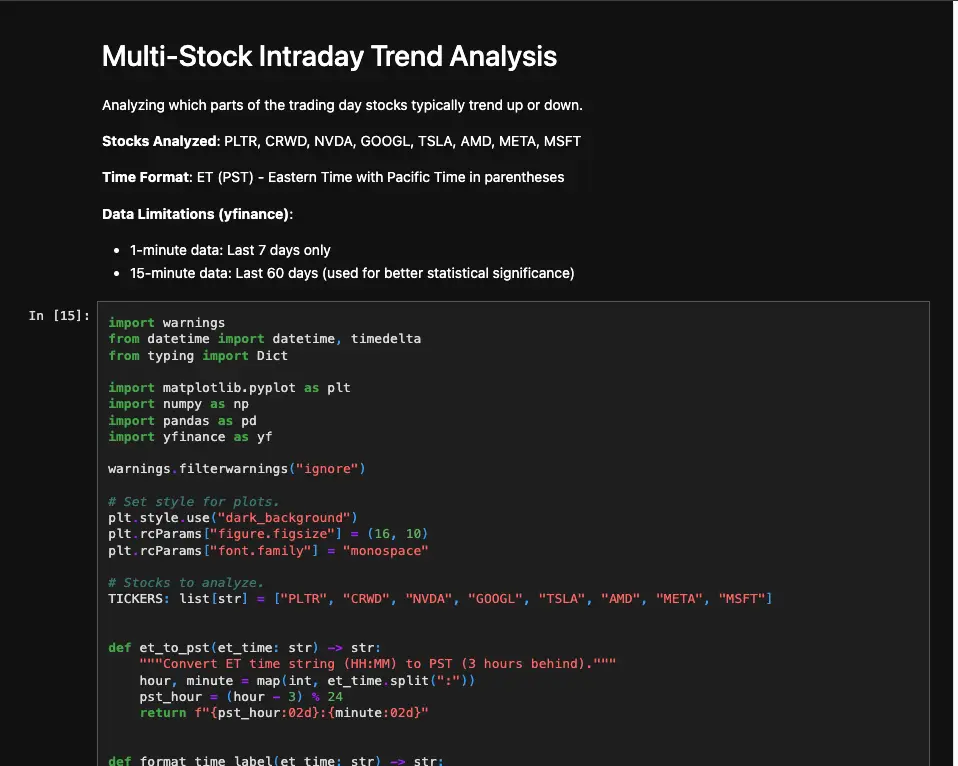
View on Github to see rendered notebook:
Loading gist...
New Tools of the Trade
The beauty of this workflow is that the LLMs have context of the notebook along
with your data sources and calculations.
You can download Windsurf or
Cursor to be make your own. But there are plenty of other
LLM-based IDEs to choose from.
I like Windsurf and Cursor because both are VSCode clones so migrating from
VSCode is seamless along with exporting/importing settings, extensions, and
hotkeys if you already use VSCode.
Jupyter Notebooks in VSCode/Windsurf/Cursor
Once you have installed the VSCode/Windsurf/Cursor IDE, follow the instructions
at How to Use Jupyter Notebooks in
VSCode/Windsurf/Cursor.
This will allow the LLM to "see" your notebook and data sources.
Related Articles
Related by topics:
python
llm